- Support center home
- Machool overview
- Account setup
- Account management
- Making a shipment
- E-commerce
- Bring your own account
- Import recipients
- Shopify advanced shipping rules
- WooCommerce advanced shipping rules
- Batch shipping
- Custom package templates
- Machool Bulk Ship
- Advanced shipment notifications
- Service Provider support
- Adjustment charges
- Deliver to local pickup location
- Machool API Solution
- Schedule a Pickup
- Machool’s Analytics Center
- Presets
- Direct Print
- Machool Wallet
- Support center
- Return Portal
- Zonos Integration
Machool Bulk Ship
What is Machool Bulk Ship?
Machool Bulk Ship is a convenient way to import multiple orders at once and fulfill them easily and efficiently. Using Machool Bulk Ship, you can upload a CSV file containing up to 5000 orders (max 5MB file size), fulfill these orders by creating shipments individually or in batches, and export a CSV file with the list of created shipments.
Key features
- Import up to 5000 orders in a single click
- Include single-piece and multi-piece orders
- Specify item dimensions, weight, preferred provider and service for each order
- Fulfill orders by creating shipments individually or in batches
- Retrieve and print labels individually or in batches
- Filter and export orders by order number, date and status
Importing orders
To import your orders successfully, the first row of your CSV file must contain all of the following column headers. You may download this sample file for reference.
Order information
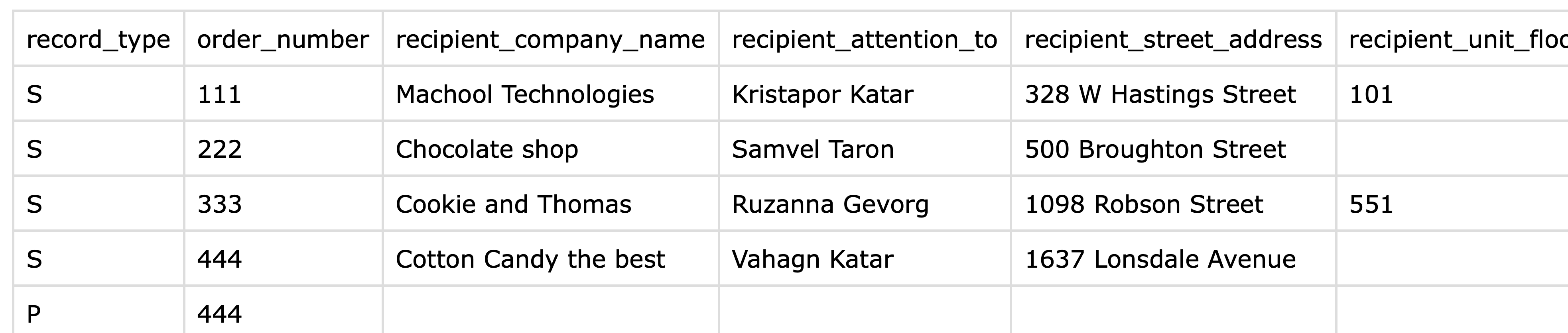
- record_type: Must be either S or P (shipment or piece). For each order_number, there should be exactly one row with record_type S. For multi-piece shipments, the first piece should have record_type S and any additional pieces should have record_type P. All pieces with record_type P must have the same order_number as the first piece. Maximum length of 1 character.
- order_number: Must be unique for each order (never used in the uploaded file before) to be uploaded. If your CSV file contains more than one row with record_type S and identical order_number values, only the first record will be imported. For multi-piece shipments, all additional pieces (record_type P) that are part of the same order must have the same order_number as the main (record_type S) piece. Maximum length of 30 characters.
Recipient information
- recipient_company_name: The name of the person or company your shipment is addressed to. Can be a personal name (John Doe) or a company (Machool Technologies). Maximum length of 30 characters.
- recipient_attention_to: Optional. The name of the person or subdivision within the recipient_company_name to whom your shipment will be referred. Can be a person (John Doe), a subsection or department (Faculty of Medicine), etc. Maximum length of 30 characters.
- recipient_street_address: The destination civic number and street name. Maximum length of 35 characters.
- recipient_unit_floor: Optional. The destination apartment, floor, suite or unit number, or any additional information which does not fit in the previous address field. Maximum length of 35 characters.
- recipient_buzzer_code: Optional. Any additional delivery information, including buzzer code or other delivery instructions. Maximum length of 6 characters.
- recipient_city: The destination city, town, township or municipality.
- recipient_province_code: The destination province, state or region. For Canadian provinces and territories and US states, you must use the official ISO two-letter abbreviated form (BC, ON, QC, NY, CA, etc.)
- recipient_postal_zip_code: The destination postal code or zip code. Mandatory for Canadian and US addresses. You may enter Canadian postal codes with or without the central space (V6B 1K6 or V6B1K6). Likewise, you may enter US zip codes in regular five-digit or ZIP+4 form (10019 or 10019-3210).
- recipient_country_code: The destination country. Countries must be entered in the official ISO Alpha-2 two-letter abbreviated form: CA for Canada, US for United States, etc.
- recipient_phone: Optional. The recipient phone number. May be entered with or without punctuation: (604) 555-1234 or 6045551234. For North American numbers, do not include the leading digit 1.
- recipient_phone_extension: Optional. The recipient's phone extension.
- recipient_email: Optional. The recipient's email address.
- reference and reference _2: Optional. Your own reference number(s) for this order, which will appear on the shipping label. Maximum length of 30 characters each.
- note: Optional. Any relevant additional information about the recipient address and/or instructions for delivery. Maximum length of 35 characters.

Shipment information
- item_system_of_measurement, item_length, item_width, item_height, item_weight: Optional. These fields must all be filled out or left blank; partial entries will not be imported. If the item_system_of_measurement is metric, the dimensions will be entered in centimeters and the weight in kilograms. If the item_system_of_measurement is imperial, the dimensions will be entered in inches and the weight in pounds. You may specify the dimensions and weight up to two digits after the decimal point. For metric, the maximum weight is 68 kg and 305 cm per side. For imperial the maximum weight is 150 lb and 150 inches per side.
- preferred_provider: If you enter a value in this field, you will only see quotes from this provider when creating shipments. Accepted values are: boxknight, canadapost, canpar, chasseurscourrier, courantplus, dhl, eeko, fedex, gls, intelcom, purolator, rivo, nationex, shift, uber, uniuni and ups. If a provider has not been enabled on your account's Manage > Providers page, this will be ignored.
- preferred_provider_service: Coming soon!
- tag: This field may be used to add an internal note for your personal reference. This will only be visible by you within Machool, and will not appear on the shipping label. Maximum length of 30 characters.

Creating shipments
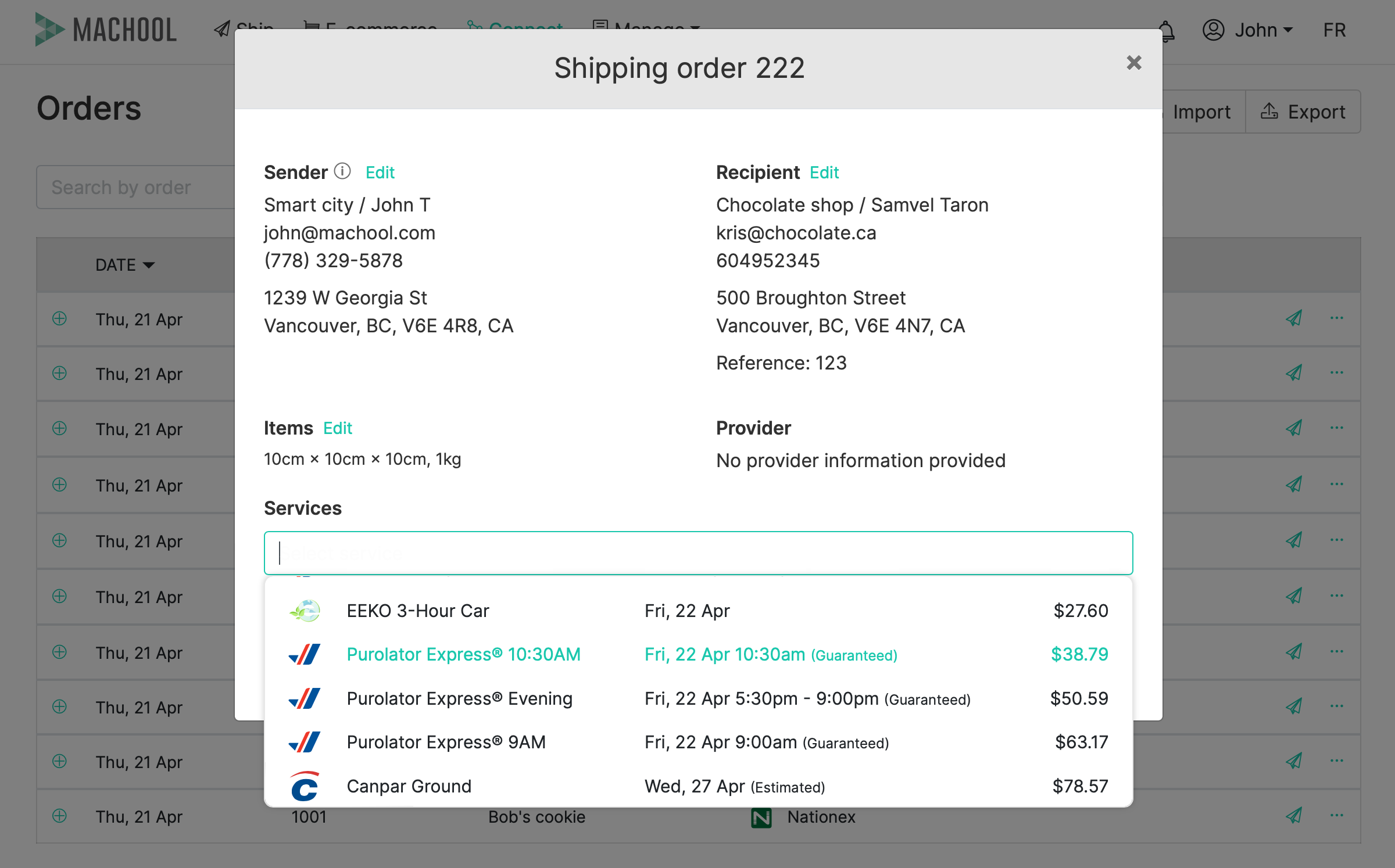
To create a shipment from one of your orders, click the paper plane icon on the right end of that order's row. This will open a modal window pre-filled with all the data imported from your CSV file for that order. Sender fields will be pre-filled with your company address or default sender address, if applicable. You may choose to modify the sender or recipient information by clicking "Edit". Likewise, if package dimensions and weight have been pre-filled, you may modify them on this screen.
Once you click "View rates", you will be able to see quotes for your shipment in a dropdown menu. If you have specified a preferred_provider in your CSV file, only quotes for this provider will be returned; however, you may remove the preferred provider to see quotes from all providers you have enabled in the Manage > Providers tab. Once you have chosen a service, you can specify any delivery options available for that service. Review the shipment details on the next screen and create your label!
Exporting orders
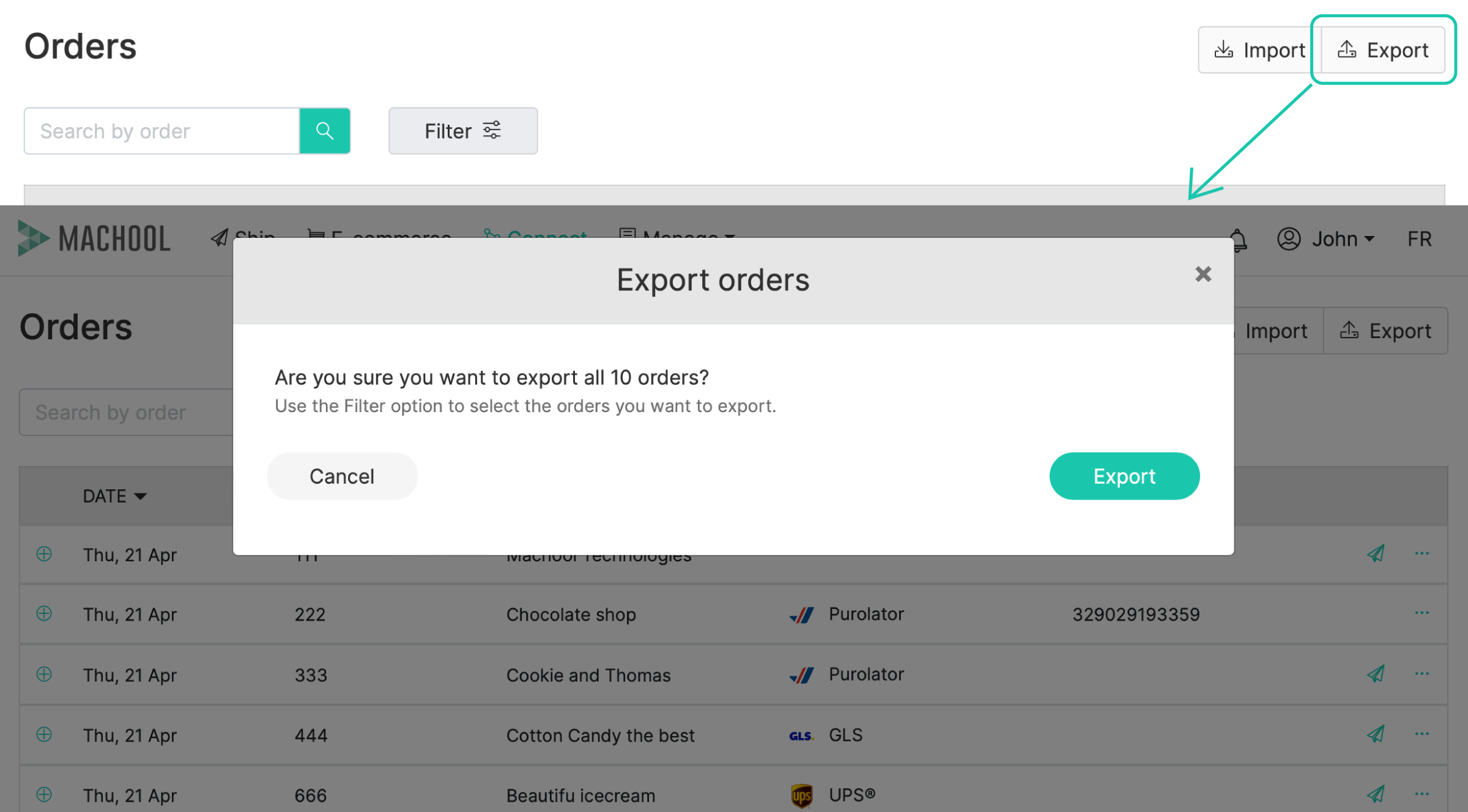
To export your orders in a new CSV file, you can simply click on "Export" in the upper right hand corner of the main Machool Bulk Ship screen. By default, this will export all your orders, but you can also filter orders by order number, status and date range. For example, to select only those orders for which shipments exist, set "Status" to "Fulfilled" and click "Search", then "Export".
The new CSV file generated will include the same columns as your original CSV import file, plus new information about any shipments created for those orders, including the provider, service name and tracking number, as well as the detailed breakdown of shipping costs.