

Support – Batch shipping
Creating and printing batch labels
Increase your shipping efficiency by creating and printing batch labels in Machool. Learn the steps for bulk label printing.
Shipping the same product to dozens of customers? You can now create and print multiple labels at once!
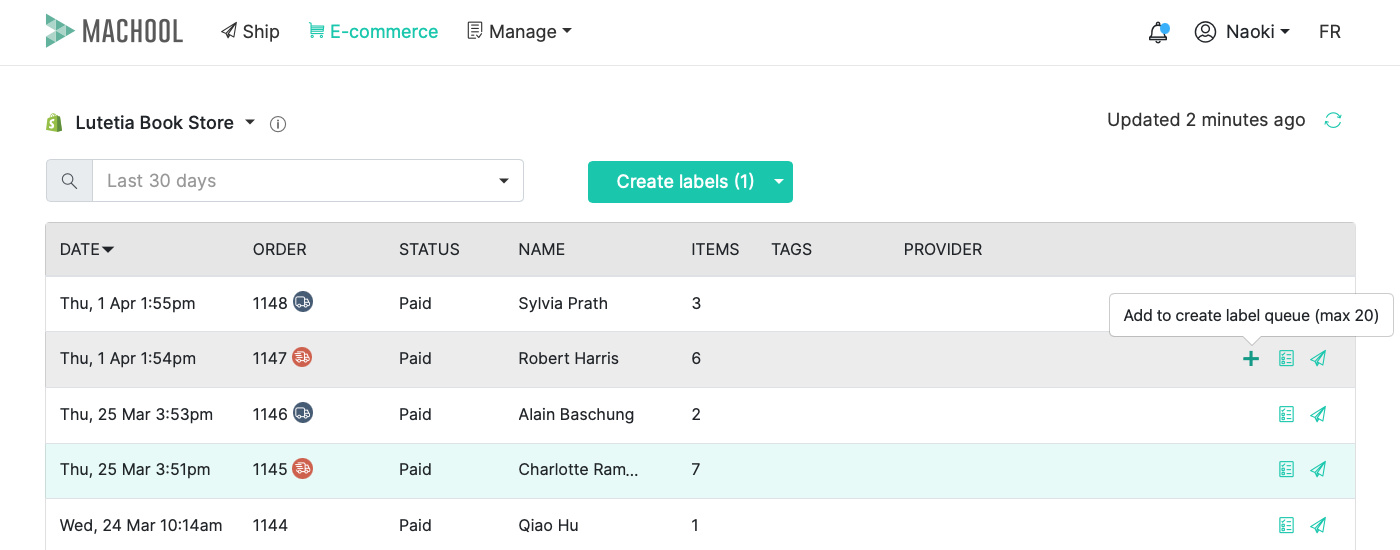
- For each order, click the + icon to add it to the Create Labels queue. When you’re ready, generate all your shipping labels together.

Batch on orders page - After you define your package dimensions and select your shipping service, you’ll see a preview of all your orders with the rates for each shipment.
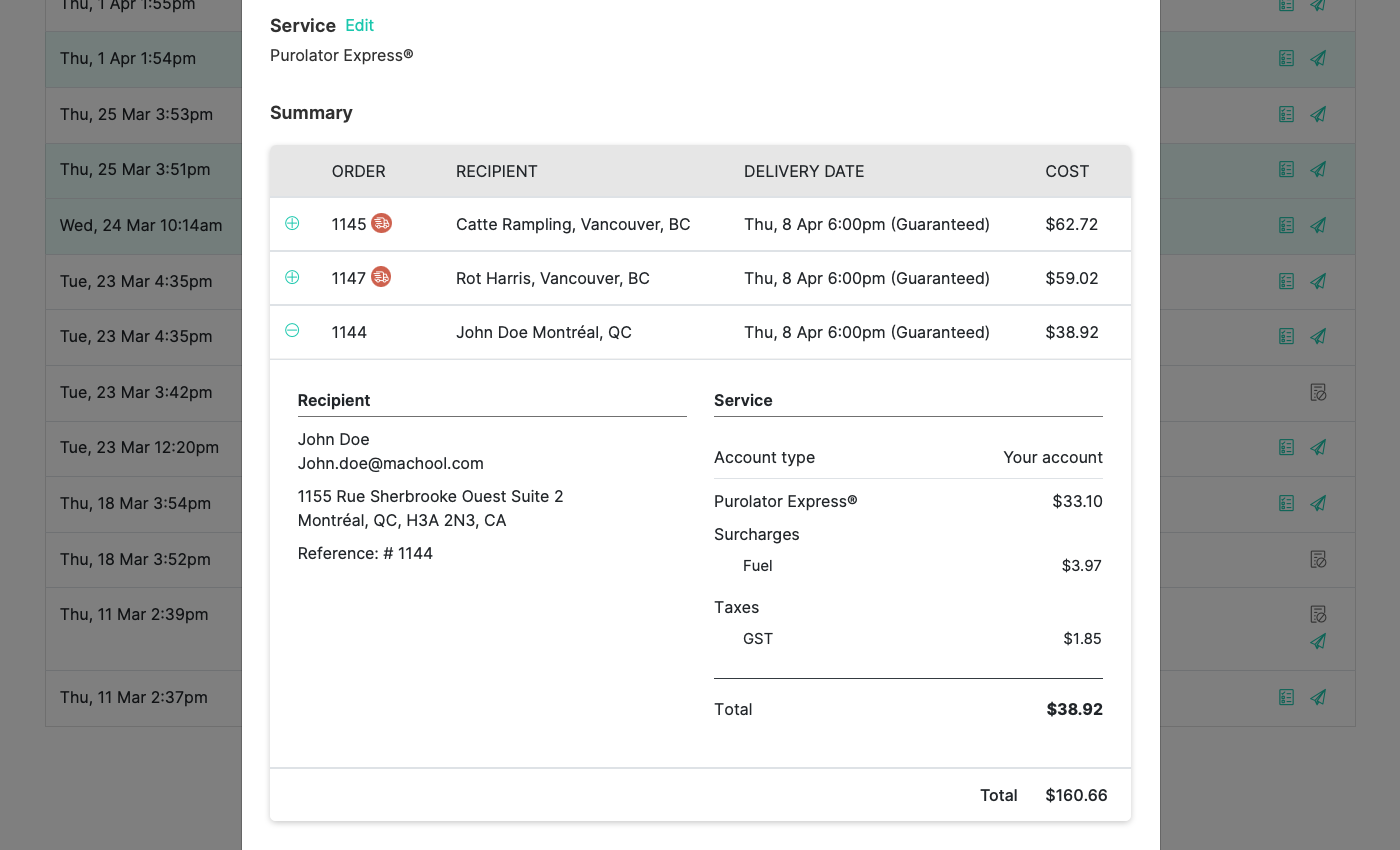
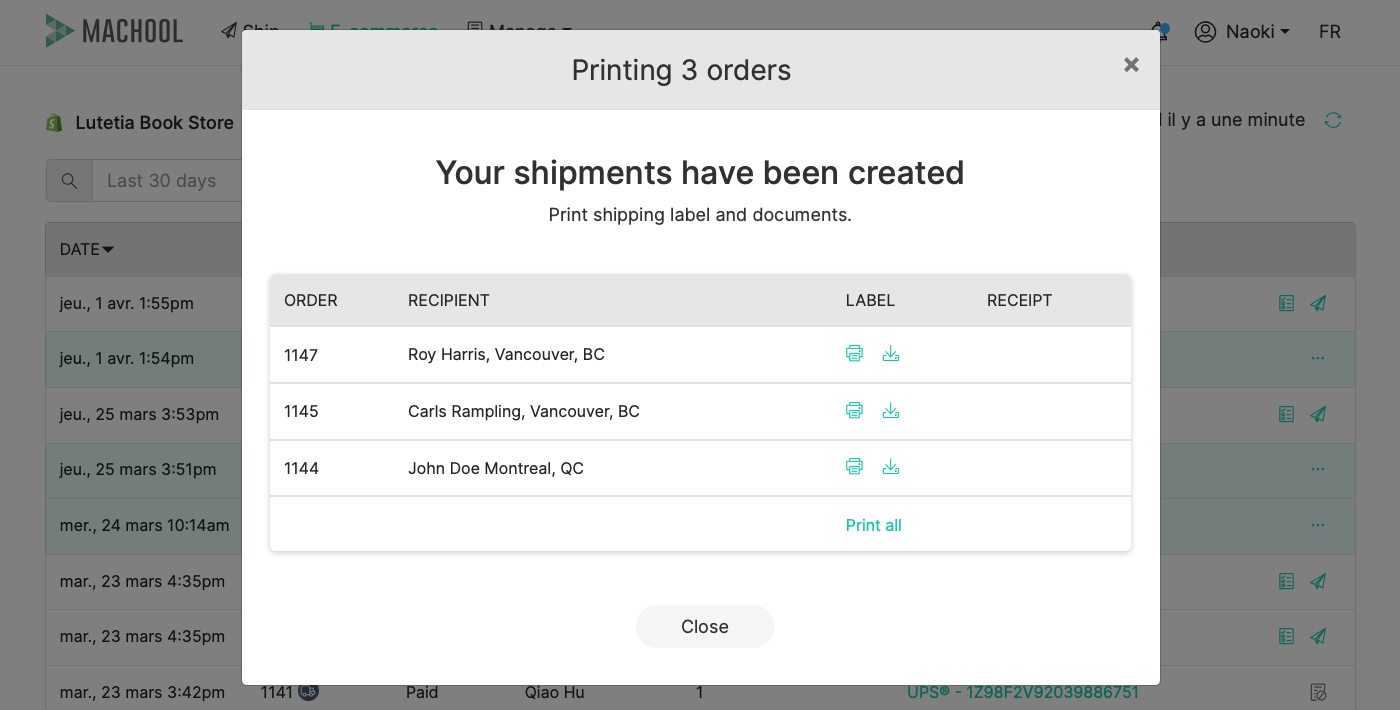
Summary of shipment - Once you’re done, you can print or download all your labels as a single PDF by clicking on Print All.
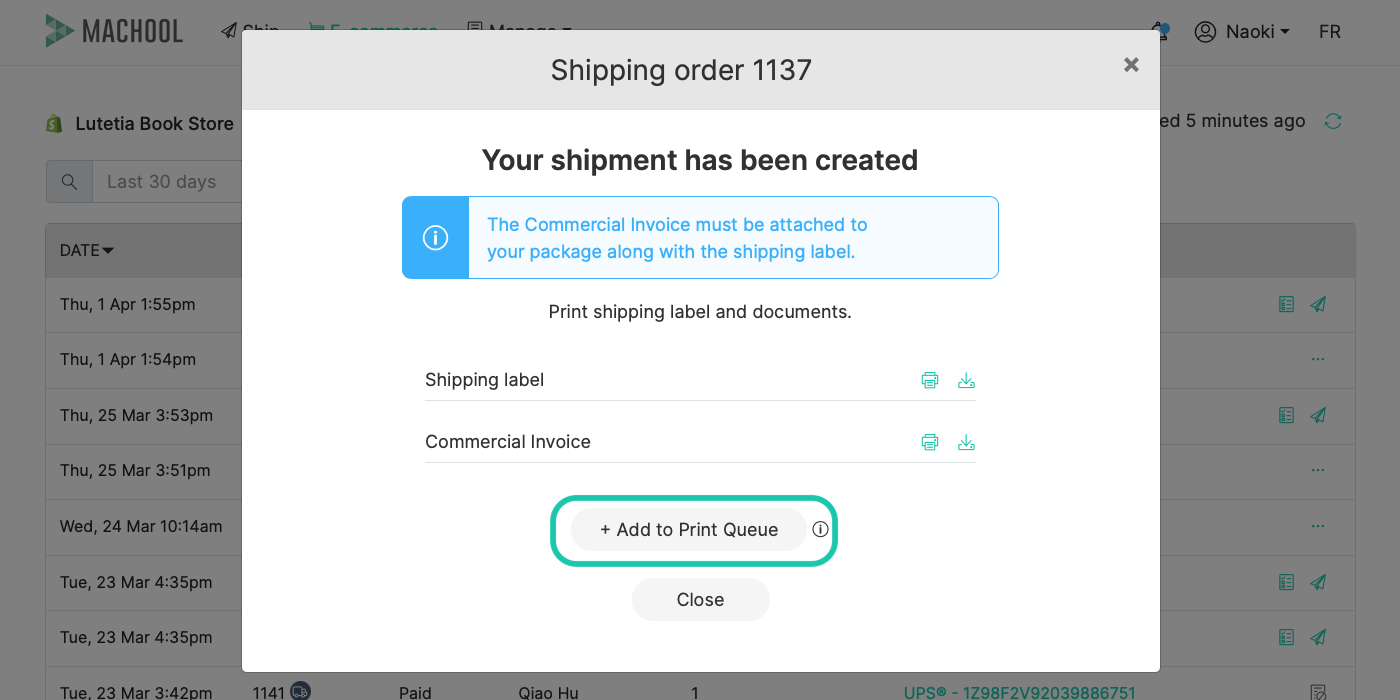
Print label and docs - You can also add labels to your Print Queue after creating each one individually, or else by clicking on the + icon next to an order previously fulfilled through Machool.
Print label queue
Note
Currently, batch shipments are only supported within Canada.
Still need help?
Didn’t find the answers you were looking for? Click here to contact us, or go back to the Support center.