

Support – setup
Account setup
Every account is free, and you only pay when you make a shipment. This guide takes you from signing up to sending your first parcel.
Quick setup
- Go to machool.com, then Ship Now and Sign Up.
- Enter your details and create the account.
- Check your inbox for the verification email and click the verify button to confirm the account.
Signing up for a business? Use the administrator’s information. That person will be able to oversee all shipment activity, billing and reports for the organisation.
Supported countries. Machool currently supports outbound shipments from Canada only.
Complete your account setup
Once the account exists, there are two things to fill in before you can ship.
Set up your billing information
Click your email address in the top right corner and select Billing. You can add up to five cards to an account, and edit or delete them from the same screen. Monthly statements also live on this page.
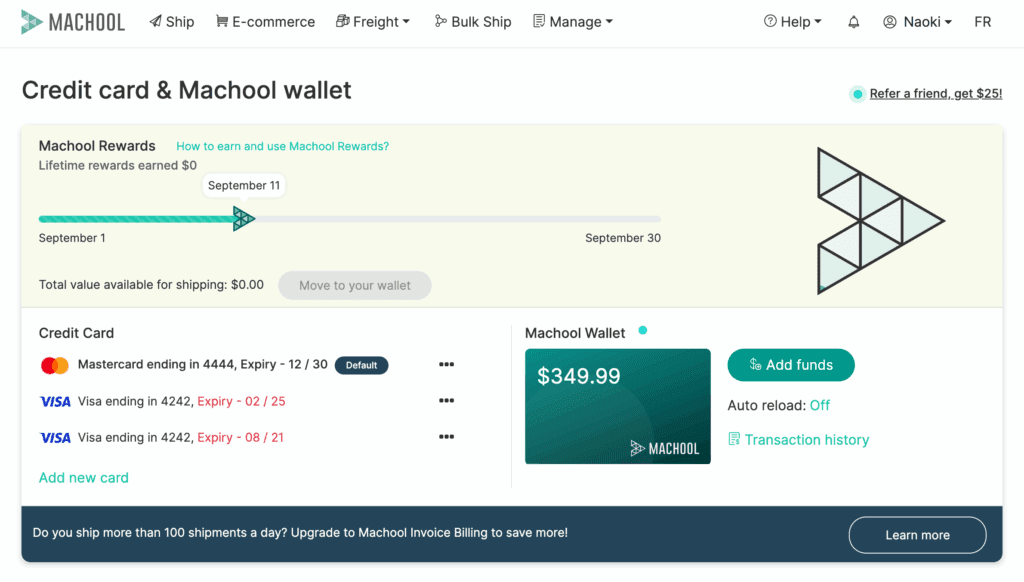
Complete your account details
Click your email address in the top right corner and select Account, then complete or update your details.
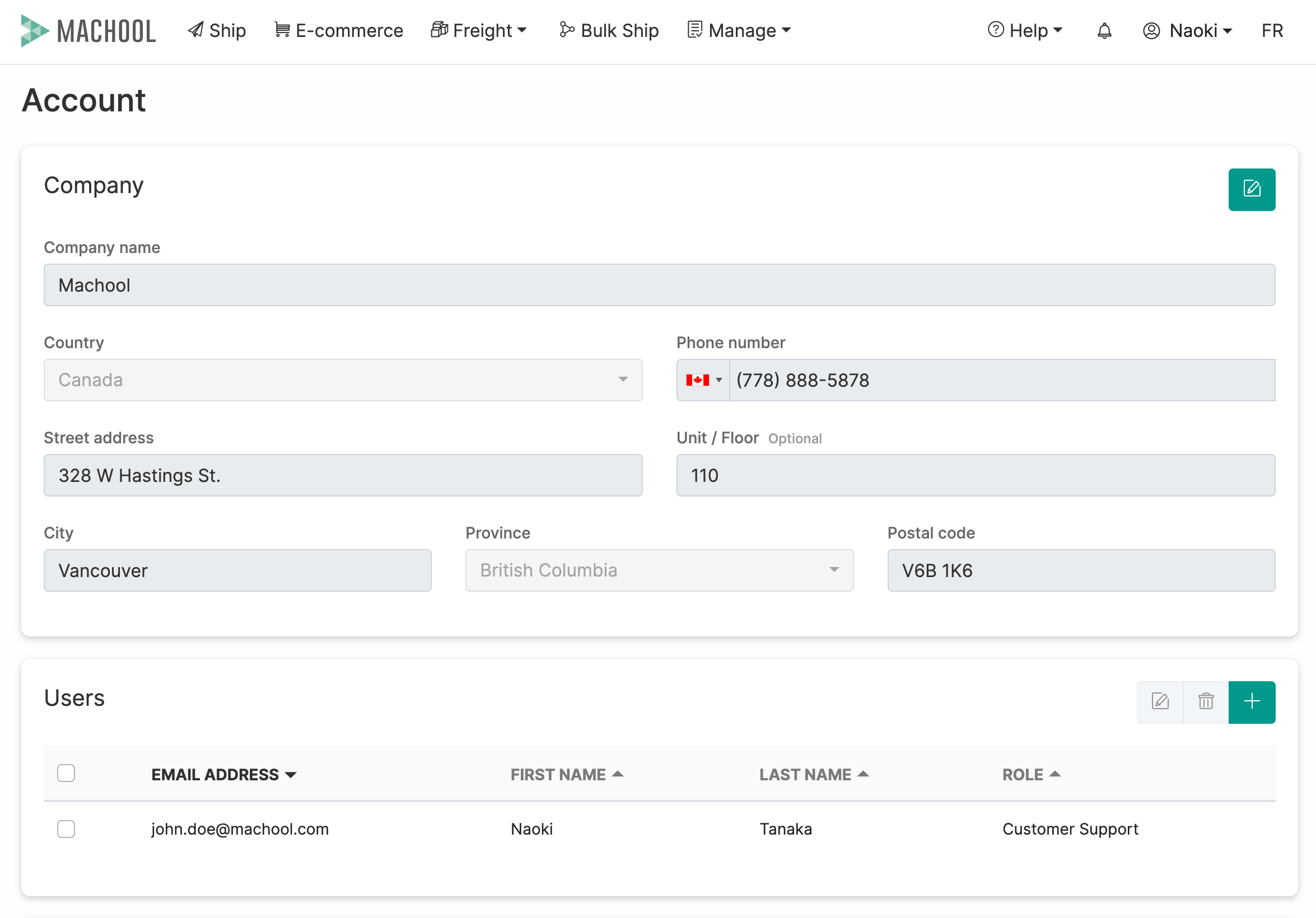
Add additional users
The account owner can add other people to the account.
- Click your email address in the top right corner and select Account.
- Select the + icon.
- Fill in the new user’s login details, and choose whether they get admin rights.
Link your shipping account
If you already have an account with FedEx, UPS, Canada Post or another courier, you can link it and compare your own negotiated rates alongside our discounted shipping rates.
- Select Manage then Providers.
- Choose the account you want to add and select Add your account.
- Fill in the required fields and press submit.
- Repeat for any other couriers your company uses.
Step by step instructions for each courier are in the Bring your own account guide.
Add cost centers
A cost center is any internal department, project or person sending a package from your organisation. There is no limit on how many you can add, so you can track which part of the business is shipping what.
- Select Manage then Cost Center.
- Click the + icon.
- Enter the cost center number or name.