

Direct Print
Understanding and installing Direct Print in Machool
In online retail, every second counts. Direct Print is a Machool extension that removes the step of viewing and downloading a PDF before you print: labels go straight from Machool to your printer.
Installing Direct Print
- Log in to your Machool account.
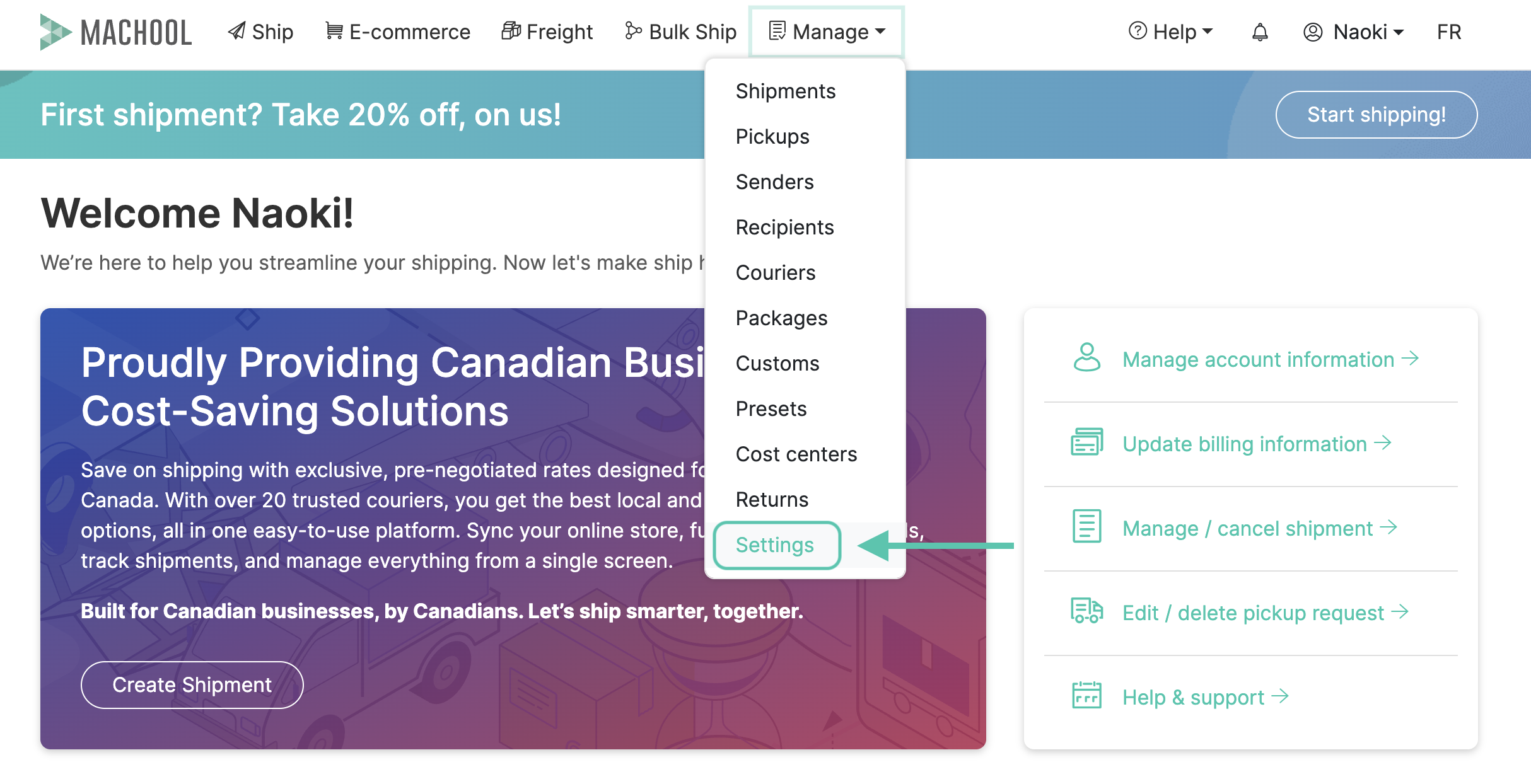
- Go to the Manage section in the top menu, then select Settings.

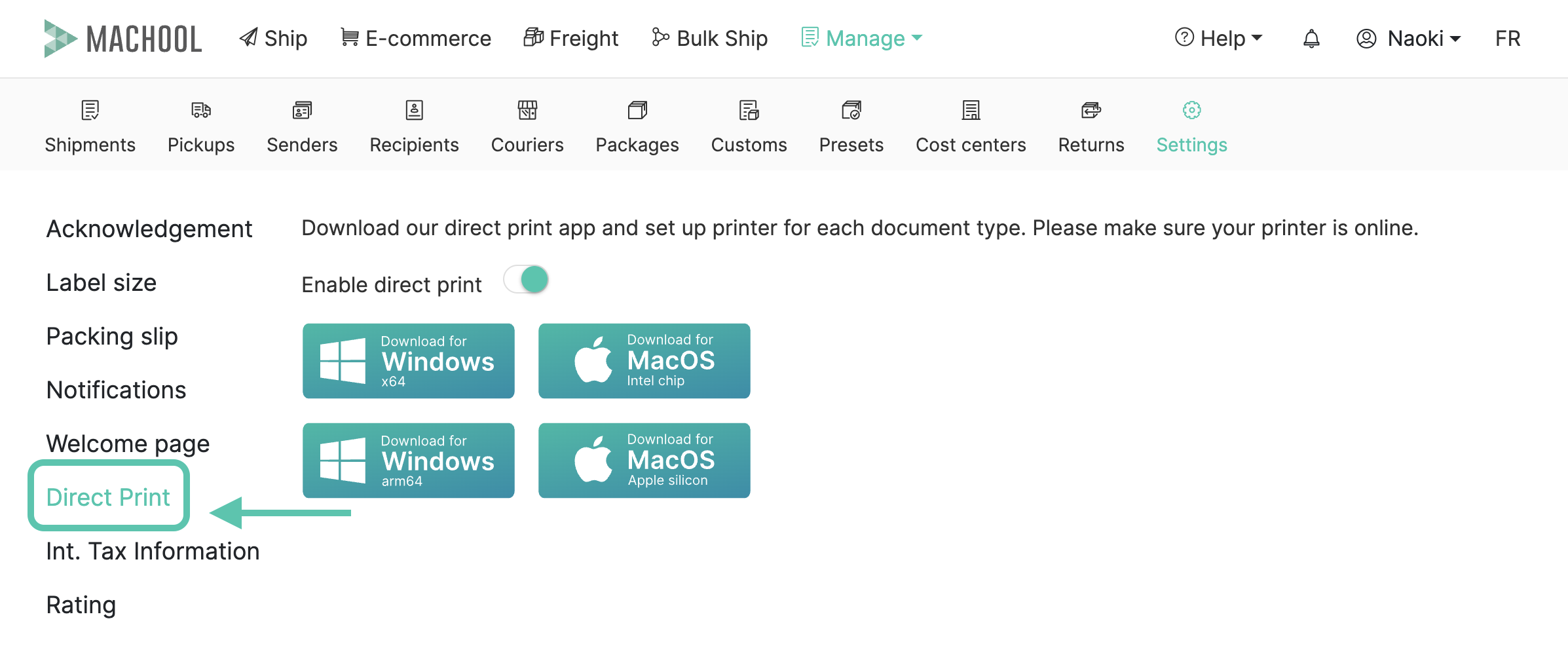
- Click Direct Print.
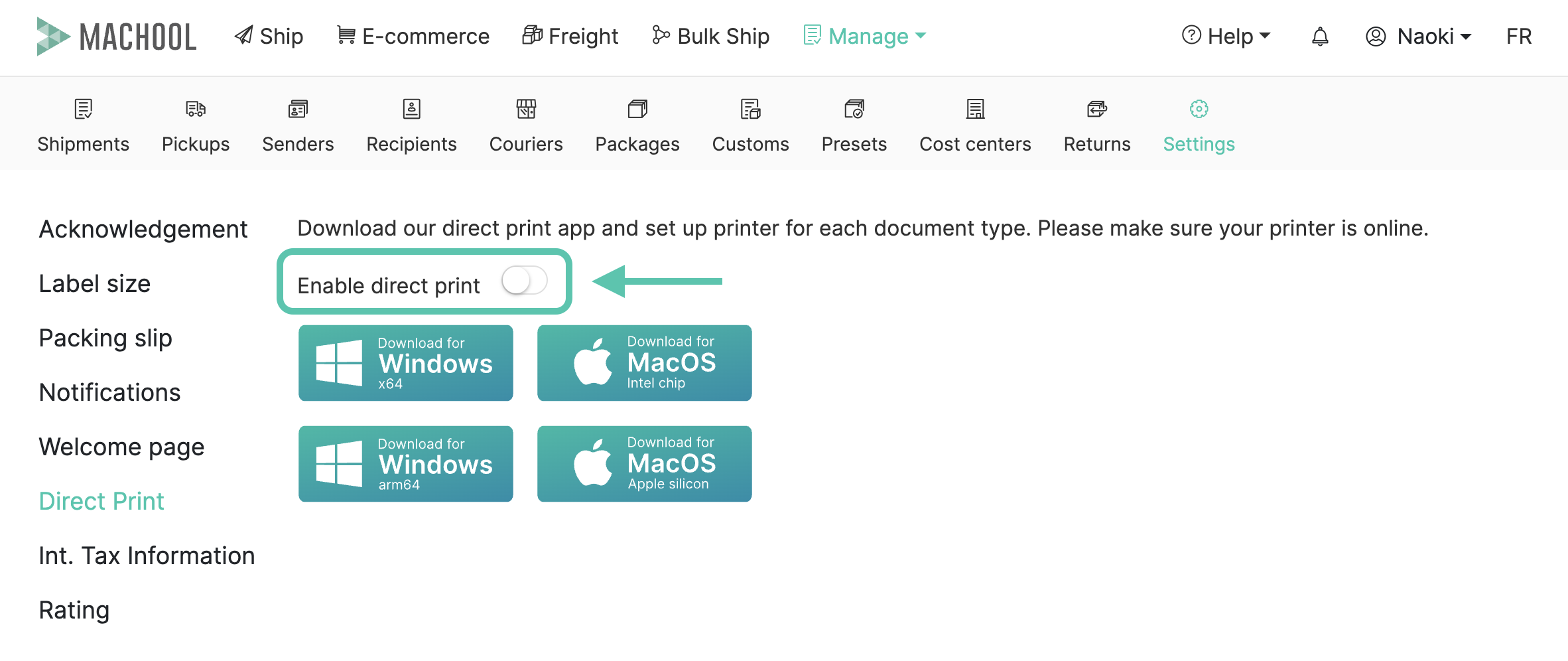
- Select the installer that matches your operating system, and turn on Direct Print in your Machool account.
- Click Install extension and follow the installation prompts.
Installation and configuration tips
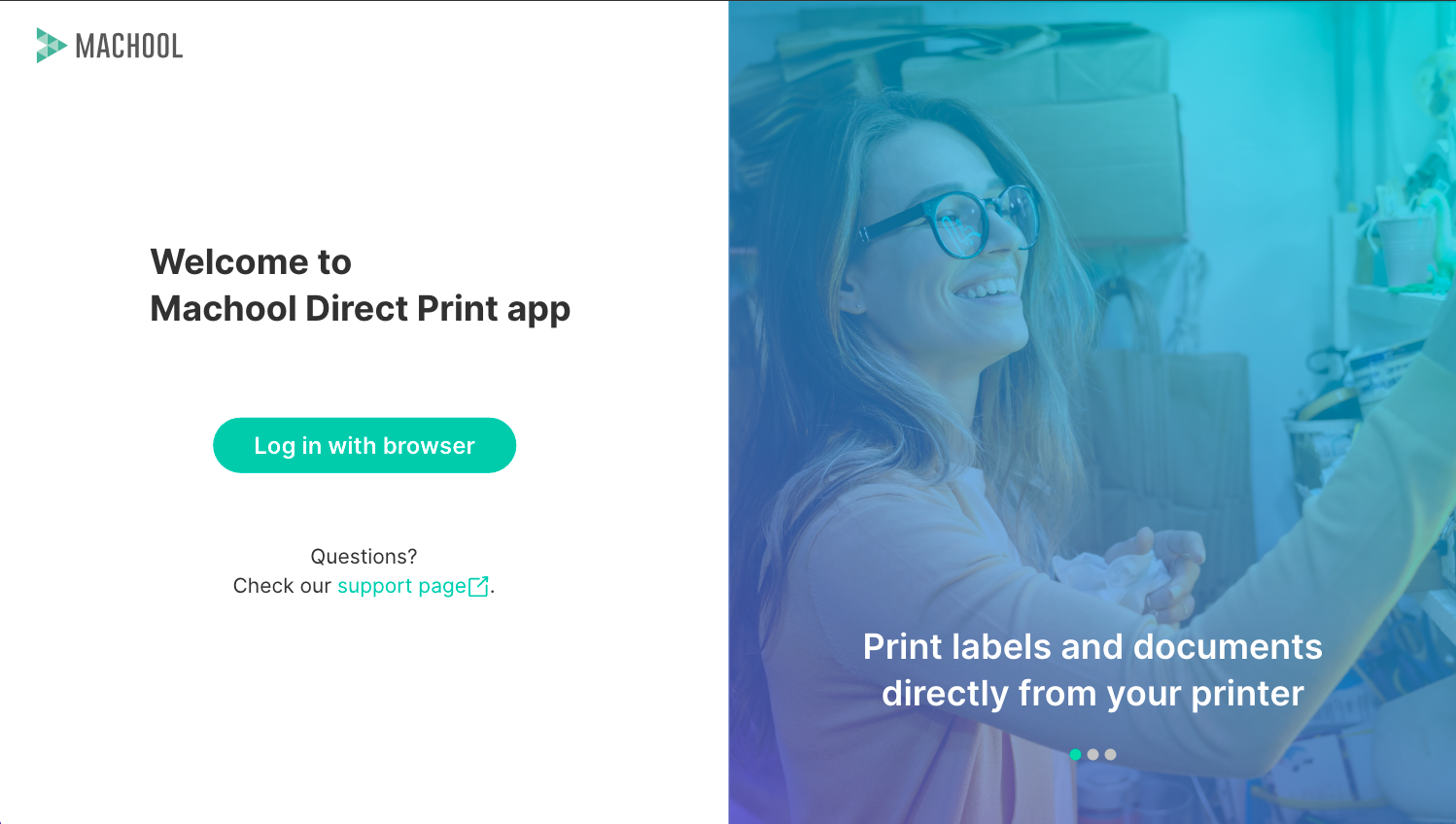
- During installation you may be prompted to log in through your browser. Follow the instructions to complete the connection.
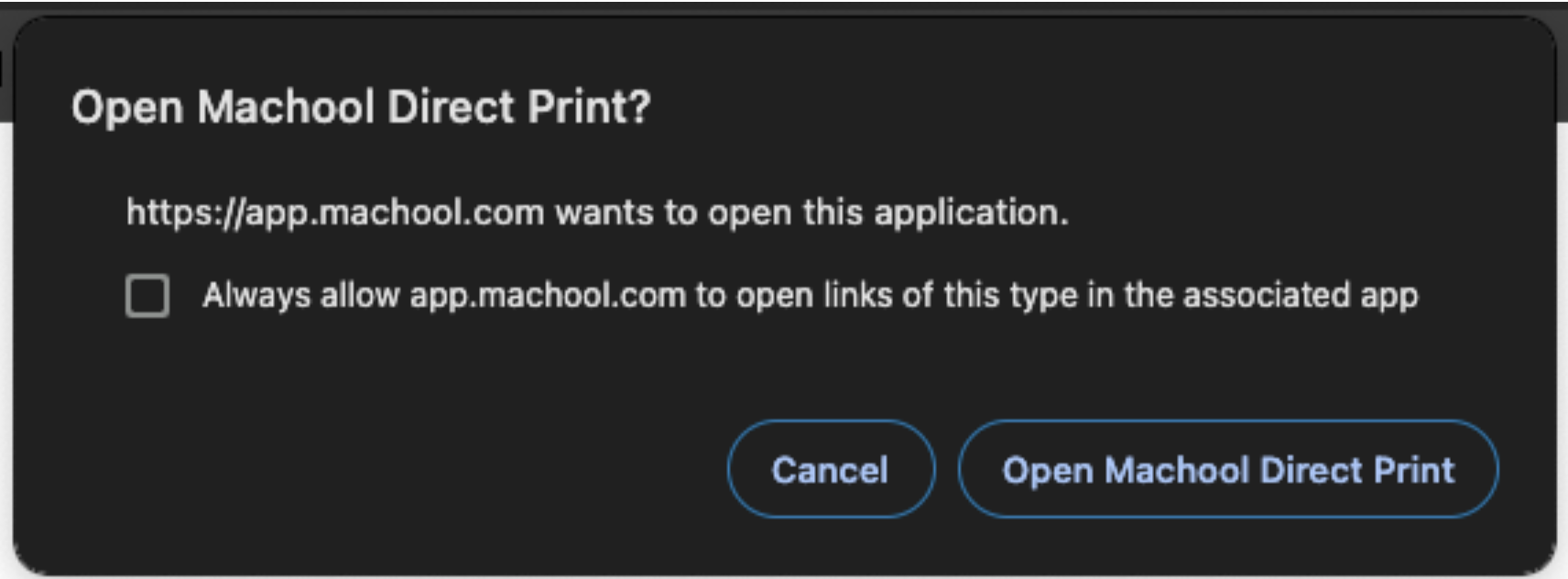
- After installing, tick Always allow app.machool.com to open links of this type in the associated app, then click Open Machool Direct Print.
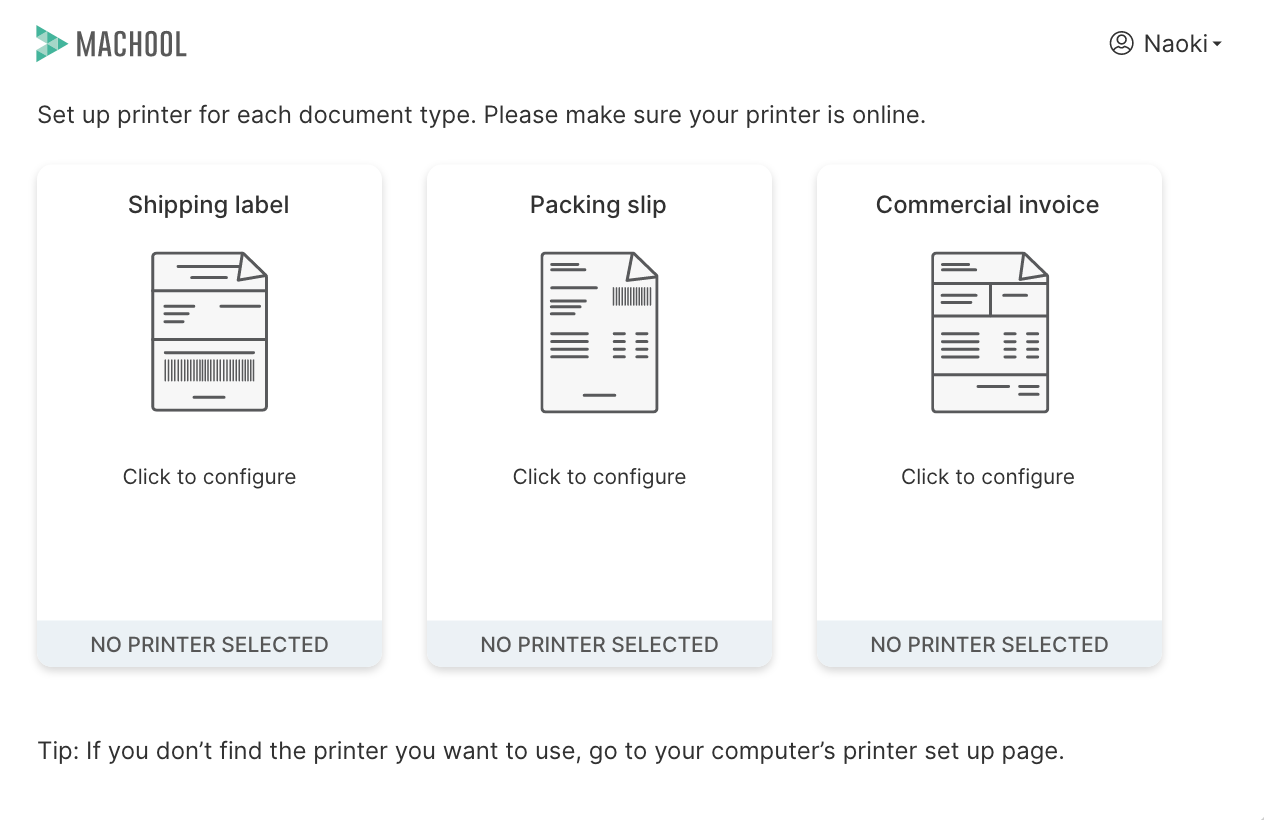
- Set up your printer for each document type so labels print at the right size every time.
Using Direct Print
Once Direct Print is installed, a printer icon appears when you create a shipment. Click it to send the shipping label straight to your printer, with no PDF to download or open first.
Troubleshooting
If something is not working, check that your browser allows extensions, confirm you followed each installation step, and clear your browser cache if needed. If the problem continues, contact our support team.
Didn’t find what you were looking for?
Head back to the Support center or contact us.